

Create wider scenes by naturally extending your image beyond its frame.
Expand
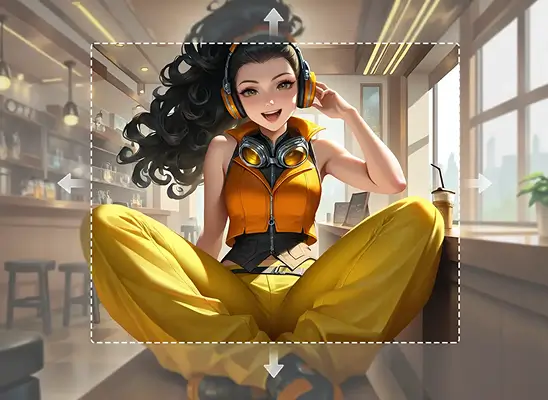
Use AI Image Expand technology to stretch your canvas, generate seamless extensions, and create wider scenes without manual editing.
Why Use AI Image Expander

Build commercial-ready environments by expanding backgrounds and adding coherent elements.
Save production time using automated canvas expansion that eliminates manual reconstruction.
Improve composition flexibility by generating space for characters, interfaces, or storytelling.
How to Use AI Image Expander
- 1
Select Expand in Workspace
Choose the Expand model in the workspace to activate the HOLO-V1 Image Expansion Model, which extends images for commercial-ready compositions.
- 2
Upload Your Image
Import your visual into the panel and prepare the frame for outpainting so new space can be added around the existing content.
- 3
Choose Expansion Direction
Drag the boundary handles to expand the image in any direction and set the area where the AI model will generate surrounding details.
- 4
Generate Expanded Scene
Provide a prompt describing the extended environment, click Generate, and receive a coherent output that produces commercial-ready assets.
When to Use AI Image Expander
Wider Scene Creation
Use the AI Image Expander when you need to build larger environments by extending backgrounds beyond the original frame.
Improved Composition Space
Ideal for creators who want extra room for characters, UI elements, or scene storytelling, with AI Image Expander.
Fixing Tight Crops
Choose AI image expansion when your asset feels cramped and requires clean outpainting to restore balance without redesigning.
Rapid Environment Extensions
Artists can rely on this free AI Image Expander to generate commercial-ready, wider canvases quickly during fast production cycles.
Start with Pre-built Models
No data available