

Upgrade low-resolution assets into sharper visuals ready for modern game engines.
Upscale
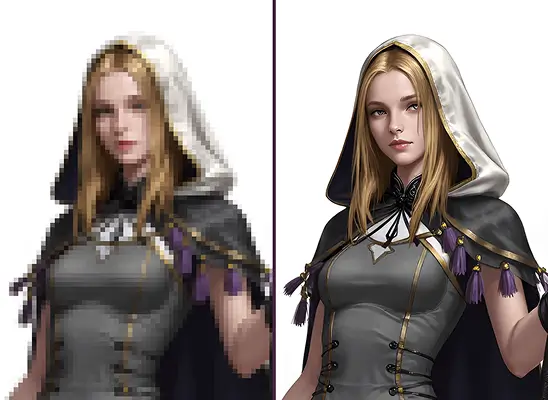
Enhance your visuals with an AI image upscaler that increases resolution, sharpens details, and delivers clean, high-clarity game assets.
Why Use AI Upscaler

Improve character textures and props with AI upscaling for added depth.
Restore blurry images with clean, high-resolution output for stronger visuals.
Use Anime or Standard Mode to upscale artwork based on project style.
How to Use AI Image Upscaler
- 1
Upload Your Image
Drag or upload your file into the Upscale panel to prepare it for AI image upscale processing that improves overall detail.
- 2
Set the Upscale Ratio
Choose your preferred upscale ratio between 100 and 400 percent to let the AI calculate the level of resolution enhancement you desire.
- 3
Pick Upscale Mode
Select either Standard Mode for realistic enhancement or Anime Mode for stylized character-focused clarity that aligns with specific art styles.
- 4
Click Generate
Click Generate and let the system perform AI upscale image refinement, producing a sharper, high-resolution output ready for commercial assets or creative projects.
When to Use AI Image Upscaler
Enhancing Low-Resolution Assets
Use AI Upscale when older or low-resolution characters, props, or textures need sharper detail for modern game engines.
Improve Art Clarity
Artists rely on free AI upscale image tools to sharpen sketches and boost resolution before presenting concepts or building final assets.
Prepare Marketing Renders
Game studios upscale visuals to create crisp, commercial-ready posters and promotional images without redrawing or recreating assets from scratch.
Enlarging Anime Artwork
Anime creators use AI image upscale in Anime Mode to enlarge character art while preserving stylized outlines and expressive features.
Start with Pre-built Models
No data available