

Use AI refine to upgrade selected areas without disturbing the image.
Refine
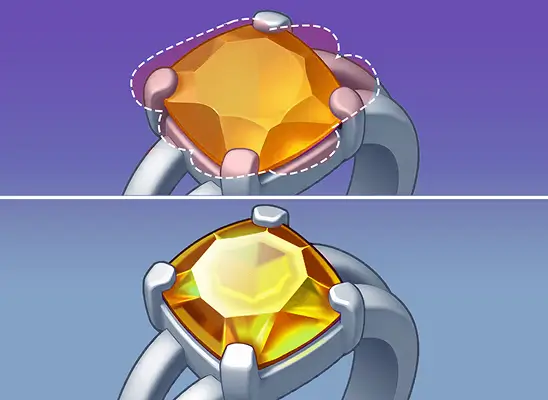
Achieve studio-level accuracy using an AI Image Refiner designed to enhance selected zones for consistent game art results.
Why Use AI Image Refiner

AI Image Refiner helps creators fix and improve clarity in zones.
Studios use AI refinement for commercial-ready improvements to selected visual regions.
AI Image Refiner lets you adjust repaint strength for subtle changes.
How to Use AI Image Refiner
- 1
Select Refine in Workspace
Open the Create section and choose Refine, which prepares the interface for selective editing using AI refine tools.
- 2
Upload Your Image
Import your image, browse the available character models, and select the one that aligns with the required visual direction.
- 3
Click Refine Area
Use Refine Area to open the editing window, paint the target region, invert if needed, and confirm the area you want to modify.
- 4
Generate Refined Output
Provide a short prompt guiding the AI refine process, click Generate, and receive a commercially-ready, polished result.
When to Use AI Image Refiners
Small Area Fixes
Use AI refine to fix minor flaws or enhance selected areas for commercial-ready results without altering the entire image.
Targeted Character Edits
AI image refiners work well when creators want to edit facial features, props, or costume elements without touching the full composition.
Quick Review Fixes
Teams use AI to refine during fast production reviews to adjust selected areas quickly while keeping the main structure intact.
Controlled Consistency Edits
AI image refiner helps maintain consistency across multiple assets by improving only the parts that require focused enhancement.
Start with Pre-built Models
No data available